
This guide covers everything: who needs what permissions, how to prepare and import the budget template, how to read the report once it's live, and how to troubleshoot the three setup failures that trip up most teams.
Key Takeaways
- Setup requires Admin-level permissions on both the project's Admin tool and Directory tool — both, not one.
- The Field Production Report (FPR) is automatically created when you import a unit quantity based budget — no separate "enable" step.
- The XLSX template has two editable tabs: Budget Line Items (labor/equipment hours) and Budget Production Quantities (units to install).
- Labor UOM must be set to hours — any other unit of measure will break FPR tracking.
- Access the completed report via 360 Reporting → Project Reports or Timesheets → Reports.
- Approved change orders in Resource Tracking and Project Financials automatically update the FPR — pending or unapproved ones do not.
What Is a Procore Field Production Report (and Why It Matters)?
Construction projects track two types of measurable work quantities. Budgeted production quantities represent what the team planned to install — say, 500 linear feet of conduit or 300 cubic yards of concrete. Installed production quantities represent what was actually installed by a specific point in time, as logged through Timesheets entries.
The Field Production Report compares these two figures side by side, alongside budgeted labor hours vs. actual hours logged — broken down by cost code. The result is a real-time view of whether your productivity rate is on track, ahead, or falling behind for each scope of work.
Why Productivity Visibility Matters for Margins
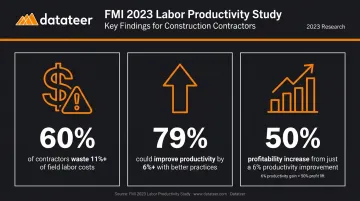
According to FMI's 2023 Labor Productivity Study, 60% of contractors reported that 11% or more of their field labor costs are wasted — and 79% could improve productivity by 6% or more with better management practices. That same 6% improvement produced an average 50% increase in profitability.
The key word is "early." A labor productivity gap discovered in week three is recoverable — you can adjust crew sizes, methods, or scope sequencing. The same gap discovered during closeout becomes a loss entry.
How the FPR Differs from Other Procore Reports
The FPR is not a financial budget report, and it's not Procore's Daily Log. Here's how they differ:
- Daily Log — records general site activity: manpower counts, weather, equipment, safety observations
- Field Production Report — surfaces productivity rate data at the cost-code level: units installed, hours logged, and variance against budget
That scope makes the FPR a tool for field supervisors and PMs — not just finance teams.
That said, the FPR operates at the individual project level. Firms tracking labor productivity across a portfolio — alongside WIP, margin variance, and labor cost data — need something beyond native Procore. Datateer's Procore integration pulls project and financial data into cross-project dashboards, surfacing labor productivity trends at the portfolio level through automated overnight sync and no manual exports.
Before You Begin: Prerequisites and Permissions
Don't skip this section. Missing either of these requirements will block setup.
Required permissions:
- Admin level on the project's Admin tool
- Admin level on the project's Directory tool
Two additional checks before you import:
UOM Master List. The FPR respects the Unit of Measure Master List set at the company level. If your firm has customized the display name for "hours" to match an ERP naming convention, confirm the underlying UOM logic still maps to hours. A misconfigured UOM will cause labor data to display incorrectly or not appear at all. Company admins can review and update this under Company Admin → Company Settings.
Change order approval workflow. For firms using Procore's Resource Tracking and Project Financials tools, only change orders in Approved status automatically update the FPR. If your team starts field work before formal approval is recorded, the report will reflect stale budgets until that status updates.
How to Set Up a Procore Field Production Report (Step-by-Step)
The FPR is automatically set up when a unit quantity based budget is successfully imported — the import is the setup. Skipping either editable tab or completing a partial import will produce an incomplete or misleading report.
Step 1: Download the XLSX Template
- Navigate to the project's Admin tool
- Under Project Settings, click Unit Quantity Based Budget
- Click Download Template
The downloaded file contains three tabs:
- Budget Line Items — editable; budget your labor and equipment hours here
- Budget Production Quantities — editable; set your physical installation targets here
- Importer Data Fields — locked reference tab; do not edit or delete values from this tab
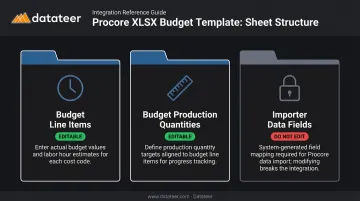
The Importer Data Fields tab contains dropdown validation data pulled from your project and company configuration. Modifying it breaks the import logic.
Step 2: Fill In the Budget Line Items Tab
This tab captures budgeted labor and equipment hours per cost code. Fields include:
| Field | What It Does |
|---|---|
| Cost Code | Must exactly match the cost codes configured in your project |
| Cost Type | Labor, equipment, etc. |
| Description | Optional label for the line item |
| Unit Quantity | The budgeted number of hours |
| UOM | Must be set to hours — this is the field most commonly set incorrectly |
The UOM field is critical. If it's not set to the hours designation from your Unit of Measure Master List, labor data will either import incorrectly or fail to populate in the report.
Step 3: Fill In the Budget Production Quantities Tab
This tab sets the physical installation targets the report will measure against. Fields include:
| Field | What It Does |
|---|---|
| Cost Code | Must exactly match project cost codes |
| Description | Label for the scope (e.g., "Conduit Installation") |
| Production Quantity | The target number (e.g., 500) |
| UOM | The unit being tracked (linear feet, cubic yards, fixtures, etc.) |
Step 4: Import the Budget
- Save the completed file in .xlsx format
- Navigate to project Admin → Unit Quantity Based Budget
- Click Choose File under "Import Budget Excel document"
- Select your file, then click Import
After importing, verify the results. Open the Unit Quantity Based Budget page and confirm all budgeted hours and production quantities are present. Rows with unrecognized cost codes or UOM values will fail silently, with no error message — check every line before treating the import as complete.
Important: Import budgeted hours only once. Subsequent imports overwrite the original budgeted hours — there is no merge or revision option. Treat the first import as permanent and finalize your numbers before uploading.
How to View and Filter Your Field Production Report
Once the budget is imported, the report is accessible two ways:
- Path 1: Project 360 Reporting tool → Project Reports → Field Production Report
- Path 2: Project Timesheets tool → Reports → Field Production Report
Viewing only requires Read Only or higher permissions on both 360 Reporting and Timesheets — a lower bar than setup, so more team members can access the report.
Using Filters
The Add Filter function supports three filters:
- Cost Code — most useful for weekly productivity reviews on specific scopes
- Sub Job Name — valuable on multi-phase or multi-location projects
- Unit of Measure — useful when tracking multiple installation types within a project
Understanding the Report Columns
The FPR organizes data into three column groups. Each group answers a different question about project performance:
| Column Group | Columns Included | What It Tells You |
|---|---|---|
| Hours | Revised Budgeted, Actual, Remaining, % Used, Projected at Completion, Earned Hours | How labor hours are tracking against the budget |
| Quantities | Revised Budgeted, Actual, UOM, Remaining, % Complete | How installed quantities compare to scoped quantities |
| Production Rate | Budgeted, Actual, Variance | Whether the crew is working faster or slower than planned |
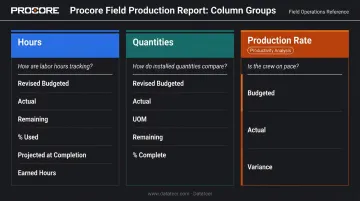
The Production Rate group is where productivity analysis lives. A negative variance means the crew is spending more hours per unit than budgeted — a signal worth catching early. When approved change orders are in play, the "Budgeted Quantities" label updates to "Revised Budgeted Quantities" to reflect the adjusted scope.
Common Setup Problems and How to Fix Them
Most FPR failures trace back to three issues — all preventable.
Issue 1: Labor Hours Not Appearing in the Report
If the report shows production quantities but no labor hour data, the Budget Line Items tab was likely left blank, partially filled, or the UOM for labor wasn't set to the hours designation in your Unit of Measure Master List.
Re-download the template, correct the Budget Line Items tab with valid cost codes and the correct hours UOM, then re-import.
Issue 2: Rows Missing After Import
When cost codes or production quantities disappear from the verification page after import, two things are usually responsible: cost codes in the XLSX don't exactly match the project's configured cost codes, or the Importer Data Fields tab was accidentally modified.
Cross-reference every cost code against the project's configured list before importing. If the Importer Data Fields tab was edited, download a fresh template and restore from it.
Issue 3: Change Orders Not Updating the Report
If an approved change order added new quantities or hours but the FPR hasn't updated, the change order likely isn't actually in Approved status in Procore. Only change orders in Approved status trigger automatic updates to the FPR and the Labor Productivity Cost budget view.
Confirm the status and move it to Approved. As a standard practice, require formal approval before field teams begin the associated work — catching this upstream prevents the disconnect entirely.
Pro Tips for Getting More From Your Field Production Report
Three practices separate teams that get real value from the FPR from those who treat it as a compliance checkbox:
Review weekly, not just at billing milestones. Procore's documentation recommends weekly or biweekly analysis for catching productivity problems while they're still correctable. FMI's research backs this up: 78% of contractors with extremely reliable cost-to-complete forecasts receive productivity feedback daily or weekly. Assign a specific PM or project admin to own each weekly review cycle.
Standardize cost codes before importing budgets. Customizing codes per job makes job-to-job comparisons nearly impossible. Consistent cost codes across projects turn the FPR's production rate data into a comparison baseline. You can measure what a conduit installation crew achieved on this project against last year's comparable job. Inconsistent codes eliminate that visibility entirely.
Plan around the FPR's portfolio ceiling. The report is project-scoped by design. For firms managing 10, 20, or 50 active projects, it delivers excellent per-project productivity data, but it doesn't roll up across jobs. Teams that need a portfolio view alongside WIP, margin variance, and labor cost should look at integration options that pull Procore data into multi-project dashboards automatically.
Datateer's Procore integration handles that directly: overnight automated sync, no manual exports, with labor productivity and budget-vs-actuals surfaced across all active projects simultaneously.
Frequently Asked Questions
What are field reports?
Field reports are event-driven construction documents that capture specific on-site activities, incidents, or milestones — such as material deliveries, safety incidents, or equipment testing. They're distinct from daily logs, which record general site activity even on uneventful days.
What should a field report look like?
A standard field report includes project details and ID, the preparer's name and timestamp, a distribution list, a description of the specific event or activity, parties involved, and any immediate actions taken. Using a consistent template across projects improves auditability and makes records easier to compare.
What permissions are needed to set up a Procore Field Production Report?
Setup requires Admin level permissions on both the project's Admin tool and the project's Directory tool. Viewing the completed report only requires Read Only or higher on the 360 Reporting and Timesheets tools.
What is a unit quantity based budget in Procore?
A unit quantity based budget is Procore's structured XLSX import format that captures both budgeted labor/equipment hours (Budget Line Items tab) and the physical quantities of work to be installed (Budget Production Quantities tab).
How do budgeted production quantities differ from installed production quantities?
Budgeted production quantities represent what the team planned to install — set during setup via the XLSX import. Installed production quantities represent what has actually been installed by a given date, as logged through Timesheets entries.
Can change orders automatically update the Field Production Report?
Yes — for firms using Procore's Resource Tracking and Project Financials tools, production quantities and hours added via change orders automatically update the FPR. The change order must reach Approved status first — pending or unapproved change orders do not trigger updates.