The problem most businesses run into isn't generating the report. It takes under two minutes. The real issues are misreading what it shows, acting on data that's been corrupted by setup errors, and not having a defined response process once the numbers appear.
This guide walks through how to run the report in both QuickBooks Online and QuickBooks Desktop, how to interpret the aging buckets correctly, what to do with the data afterward, and the three setup mistakes that make the report unreliable before you've read a single number.
Key Takeaways
- The report takes under two minutes to run — but only reflects reality if payment terms are configured correctly for every customer
- Use Summary for a financial snapshot; switch to Detail mode before making collection calls
- The 91+ day bucket signals accounts with a 69.6% payment probability — act before balances reach six months
- Unapplied credits and missing invoice entries are the two most common causes of misleading data
- Construction firms need job-level AR detail that a standard QuickBooks aging report doesn't provide
How to Run an AR Aging Report in QuickBooks
QuickBooks offers two report types — pick the one that matches your purpose:
- AR Aging Summary: Shows total outstanding balances by customer, grouped by aging bucket. Use this for a high-level financial view or balance sheet reconciliation.
- AR Aging Detail: Shows individual invoices with due dates and amounts. Use this when making collection calls or investigating a specific overdue balance.
QuickBooks Online: Step-by-Step
- Navigate to Reports — From the left menu, click "Reports," then either search "Aging" in the search bar or go to the "Who owes you" section under Standard Reports.
- Select your report type — Choose Accounts Receivable Aging Summary or Accounts Receivable Aging Detail.
- Set the reporting date — The default is today. Adjust to a prior period-end (such as the last day of the previous month) if you're matching the report to a balance sheet.
- Customize and save — Open "General Options" to adjust aging period intervals and number of periods. Click "Save customization" so your settings persist for future runs.
One important setting: QuickBooks Online defaults to the "Current" aging method, which ages invoices based on today's date. When matching the AR Aging Summary to your Balance Sheet, switch the aging method to "Report date" under customization options.
QuickBooks Desktop: Step-by-Step
- Access the Reports menu — Click "Reports" in the top menu bar, then hover over "Customers & Receivables."
- Select your report — Choose either "A/R Aging Summary" or "A/R Aging Detail" from the dropdown.
- Customize the report — Click "Customize Report" to modify columns, apply customer filters, or adjust display options using the Display and Filters tabs. Click "Refresh" to regenerate the report with your updated settings.
- Export the results — Use the Export button to save as an Excel workbook (.xlsx) for use in collections follow-up or financial reviews.
How to Read and Interpret Your AR Aging Report
Understanding the Aging Buckets
Each bucket represents a different risk level — and a different appropriate response:
| Bucket | Risk Level | Typical Action |
|---|---|---|
| Current | None | Monitor |
| 1–30 days past due | Low | Send automated reminder |
| 31–60 days | Moderate | Direct email or phone follow-up |
| 61–90 days | High | Escalate to senior staff or formal demand |
| 91+ days | Very high | Collections referral or bad debt write-off |
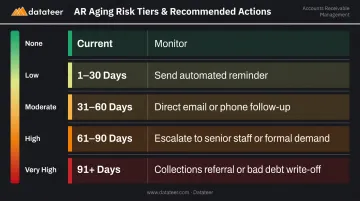
According to Dun & Bradstreet, accounts 90 days past due have a 69.6% chance of being collected. That drops to 52.1% at the six-month mark. The window to act effectively is narrower than most businesses assume.
Key Metrics to Track
Don't just glance at totals. Watch these specific signals:
- Percentage of total AR in the 60+ day buckets — a growing share over consecutive reporting periods indicates a systemic collections problem, not just a few late payers
- Top five customers by overdue balance — concentration risk matters; one large slow payer can distort the whole picture
- Invoice count per aging period — high invoice counts in the 31–60 bucket with small dollar amounts often points to a billing process issue, not a collections problem
Summary vs. Detail: Which to Use When
The Summary view tells you who owes money. The Detail view tells you which invoices are overdue, when they were due, and for exactly how much — which is the version you need before picking up the phone.
A Common Source of Confusion
An invoice can appear overdue in the aging report even when the customer is technically paying within their agreed terms. This happens when payment terms aren't correctly configured at the customer level in QuickBooks — if a customer has Net 45 terms but the system doesn't know that, it defaults to something shorter and flags the invoice as late. Verify customer-level payment terms before treating any aging data as accurate.
The 91+ Day Bucket and Bad Debt Estimation
Balances sitting in the 91+ day bucket for multiple months warrant a formal accounting decision. Your estimate of uncollectible receivables should be updated at least quarterly based on your aging report. The Journal of Accountancy notes that aging reports are the primary tool for generating these uncollectible account estimates at specific points in time.
What to Do After Running the Report
Running the aging report takes minutes. Acting on it — systematically — is what actually moves cash.
Build a Tiered Collections Workflow
Match your follow-up cadence to the aging bucket:
- 1–30 days — Automated payment reminder via QuickBooks or your billing system; no manual intervention yet
- 31–60 days — Direct phone or email contact from an AR staff member; confirm the invoice was received and ask for a payment commitment date
- 61–90 days — Escalate to a manager or controller; send a formal written demand noting potential service suspension or credit hold
- 90+ days — Refer to a third-party collections agency, issue a final demand, or write off the balance as bad debt
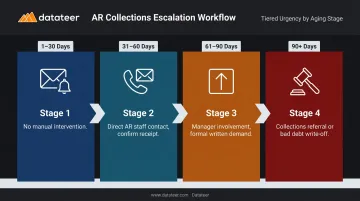
The National Association of Credit Management's collections policy framework recommends that your policy define specific methods and timelines for each stage — not a general instruction to "follow up when overdue."
Adjust Credit Policy Based on Patterns
If a specific customer appears in the 60+ bucket across multiple reporting periods, that's a pattern, not a one-off delay. Consider:
- Tightening their credit limit
- Requiring partial upfront payment on new work
- Switching to shorter payment terms (Net 15 instead of Net 30)
If multiple unrelated customers are aging out at the same time, your terms may be too lenient across the board.
Use AR Aging for Cash Flow Forecasting
The aging report is one of the most practical inputs for a short-term cash forecast. By knowing which overdue balances are likely to convert in the next 30–60 days (and which probably won't), you can project realistic incoming cash and plan around it — whether that's timing payroll, materials purchases, or covering operating expenses.
FMI's construction finance research illustrates the stakes: in one example, collecting just two days faster freed over $116,000 in working capital for a mid-size contractor. The math scales with company size.
Construction Firms: Where QuickBooks Falls Short
For contractors managing receivables across multiple active jobs and billing cycles, that cash flow gap points to a deeper limitation: a single QuickBooks AR aging report often can't answer the question that matters most — which specific project is the cash flow problem?
QuickBooks aggregates AR by customer. That tells you ABC General Contractors owes $180,000, but not whether that's spread across three jobs or concentrated in one troubled contract. Retainage compounds the problem — QuickBooks doesn't surface it as a separate aging category, so a meaningful portion of your receivables sits outside the standard buckets entirely.
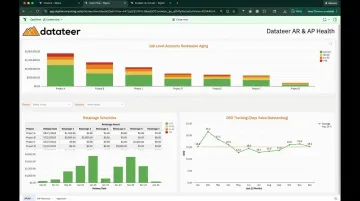
Datateer's AR & AP Health dashboard, part of its Financial Operations & Cash Management suite, pulls AR data nightly from QuickBooks and other construction ERPs — including Sage, Viewpoint Vista, Acumatica, and CMiC — and breaks down aging at the job level alongside retainage schedules and DSO tracking. Construction finance teams at firms like Double L Management have described it as replacing two weeks of manual work with a single click.
Common Mistakes That Make Your AR Aging Report Unreliable
Missing or Misconfigured Payment Terms
Payment terms drive due dates, and due dates determine aging. If a customer's payment terms aren't set at the customer level in QuickBooks, the system can't accurately calculate whether an invoice is overdue or current.
To verify, go to each customer's profile in QuickBooks and confirm that payment terms are explicitly set — not left blank or defaulting to a company-wide setting that doesn't reflect your actual agreement.
It's easy to miss during customer setup, especially for businesses that onboard clients quickly.
Unapplied Credits and Partial Payments
When a customer sends a partial payment or a credit memo is issued but not applied to a specific invoice, the aging report will show phantom overdue balances that have already been partially or fully resolved.
Two functions to use consistently:
- Receive Payment — apply incoming payments to the correct open invoices
- Apply Credit — match credit memos to the specific invoice they should offset
If you're seeing "Unapplied Cash Payment Income" on reports, that's the indicator to investigate.
Delayed Invoice Entry
If an invoice isn't recorded in QuickBooks until a week after it was issued, the aging clock starts a week late. The report will show a healthier AR position than your actual position. Worse, by the time someone notices the real due date, the collection window has already shrunk.
The fix is a consistent process for entering invoices at the time they're issued, not at the time of follow-up. In practice, this means a clear handoff between whoever generates the invoice and whoever enters it into QuickBooks.
Frequently Asked Questions
What is the difference between the AR Aging Summary and AR Aging Detail report in QuickBooks?
The Summary shows each customer's total outstanding balance grouped by aging bucket — useful for a financial overview or board reporting. The Detail shows individual invoices with due dates and amounts for each customer — use this version when you're making collection calls or identifying which specific invoices to resolve.
Why doesn't my AR aging report balance match my balance sheet AR balance?
The most common causes are unapplied credits, partial payments posted to the wrong invoice, or an aging method mismatch. In QuickBooks Online, set the aging method to "Report date" (not "Current") and run the balance sheet on accrual basis — then the two figures should reconcile.
How do I change the aging period intervals in QuickBooks?
In QuickBooks Online, open the report, click "Customize," then adjust the days per aging period under General Options. In QuickBooks Desktop, use the Customize Report window. Both versions let you change from the standard 30-day intervals to any interval that matches your payment terms.
How often should I run an accounts receivable aging report?
Weekly for active collections management; monthly for financial reporting and bad debt estimation. During high-volume billing periods or when cash is tight, weekly isn't enough — some construction finance teams run it daily during month-end close.
What should I do when an invoice has been in the 91+ day bucket for several months?
Three options apply: send a formal collections demand, refer the account to a third-party agency, or write off the balance as bad debt through QuickBooks' bad debt write-off process. Collections referral keeps recovery active; a write-off clears the AR balance for accounting purposes. You can do both.
Can I run an AR aging report by job or project in QuickBooks?
QuickBooks Online supports filtering by customer and class, with project-level tracking available in Plus and Advanced tiers. A true job-level AR aging report — aging broken out per project, not per customer — requires QuickBooks' job costing features or a dedicated reporting tool. Construction firms managing multiple active contracts often hit this limit fastest.